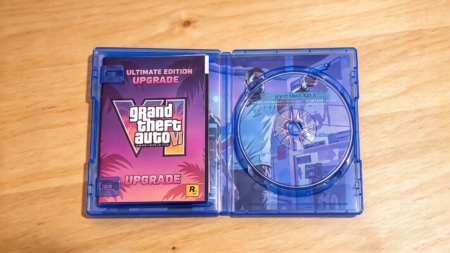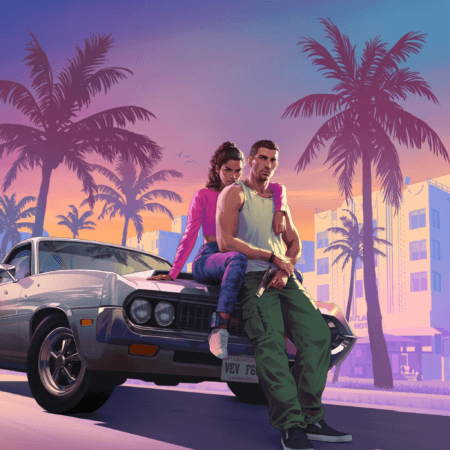

Grand Theft Auto VI takes up nearly 212 GB of storage on Xbox Series X|S, making it one of the largest games you can install on your console. If your storage is almost full, you may need to delete older games, move them to an external drive, or upgrade your storage before installing GTA 6.
You should ideally have around 250 GB of free space to leave room for the game and potential updates. This guide explains the easiest ways to free up Xbox storage without permanently losing your games.
How Much Storage Space Do You Need?
GTA 6 requires up to 212 GB of storage, according to Rockstar. The reported Xbox installation size after updates is approximately 211.9 GB, although the actual amount may vary.
We recommend having around 250 GB of free space to give yourself some extra room for updates and other installation requirements.
Here is how much storage the different Xbox models offer:
- Xbox Series S (512 GB): Approximately 364 GB of usable storage, making it the most storage-limited model.
- Xbox Series X (1 TB): Approximately 800 GB of usable storage.
- Xbox Series X (2 TB): Approximately 1.6 TB of usable storage, giving you more room for large games.
Step 1: Check Your Available Storage
Before deleting anything, check how much free space your Xbox has. This helps you determine how much storage you need to clear.
- Press the Xbox button on your controller.
- Open Profile & system > Settings.
- Go to System > Storage devices.
- Select your internal storage to check how much space is available.
If you have less than 250 GB of free space, continue with the steps below to make room for GTA 6.
Step 2: Uninstall Games You No Longer Play
Deleting games you have finished or no longer play is the quickest way to free up storage. You can always reinstall them later without purchasing them again.
- Open My games & apps.
- Select See all > Games.
- Highlight a game you want to remove and press the Menu button on your controller.
- Select Uninstall and confirm.
If possible, sort your games by file size and uninstall the largest titles you no longer need. Removing one or two large games may be enough to make room for GTA 6.
Your installed game files will be removed, but your saved progress is generally stored separately. Make sure your save data has synced properly before uninstalling a game, especially if you have not played it recently.
Step 3: Move Older Games to an External USB Drive
If you don’t want to uninstall your games permanently, you can move them to an external USB hard drive or SSD. This is a cheaper alternative to buying additional Xbox storage.
You can use a compatible USB 3.0 drive with a capacity of 250 GB to 8 TB for storing games.
- Connect your USB external drive to your Xbox.
- Open My games & apps and select the game you want to move.
- Press the Menu button and choose Manage game and add-ons.
- Select the storage or move option, then choose your external drive as the destination.
Important: Most Xbox Series X|S optimized games cannot be played directly from a standard USB external drive. You can store them there and transfer them back to your console’s internal SSD when you want to play.
Many Xbox One, Xbox 360, and original Xbox games can be played directly from a compatible external USB drive, allowing you to keep more games accessible without filling up your internal storage.
Step 4: Upgrade With an Official Xbox Storage Expansion Card
If you regularly run out of storage, an official Xbox Storage Expansion Card is the most convenient long-term solution. It provides additional storage for Xbox Series X|S games, allowing you to install and play GTA 6 without removing other games from your internal SSD.
Unlike standard USB drives, these expansion cards support games that require Xbox Series X|S storage performance.
- Purchase a compatible Xbox Storage Expansion Card in the capacity you prefer.
- Locate the dedicated expansion slot on the back of your console.
- Insert the card into the expansion slot.
- Turn on your Xbox and check the storage menu to confirm the card is recognized.
Once installed, you can use the expansion card as an additional game installation location. This is particularly useful if you want to keep GTA 6, other large games, and your frequently played titles installed at the same time.
Step 5: Delete Old Game Captures and Screenshots
Games aren’t the only things that consume storage. Screenshots, recorded gameplay clips, and other captures can also take up space, especially if you regularly record long videos.
- Open your Xbox capture management options.
- Go to Manage captures.
- Review your screenshots and recorded clips.
- Delete videos and screenshots you no longer need.
- Back up important captures before deleting them, if you want to keep them.
You can also review your capture settings and reduce or disable automatic recording to prevent unnecessary clips from accumulating.
Important Things to Remember
- GTA 6 requires approximately 212 GB of storage, but the final space needed can vary.
- Standard USB external drives can store games, but they cannot run most Xbox Series X|S optimized titles.
- Your saved game progress is separate from the installed game files in most cases, but make sure your saves are synced before uninstalling games.
- Your console’s advertised storage capacity is not fully available for games because system files and other data occupy part of it.
- Check your default installation location after freeing up space so new games are installed on the storage device you want.
Final Thoughts
Running out of storage on your Xbox doesn’t mean you need to delete your entire game library. Uninstalling games you no longer play, moving older titles to an external drive, and deleting unwanted captures are simple ways to free up space.
If you frequently install large games like GTA 6, an official Xbox Storage Expansion Card can also help you avoid constantly managing your storage. With enough free space, you can enjoy GTA 6 while keeping more of your other games installed and ready to play.