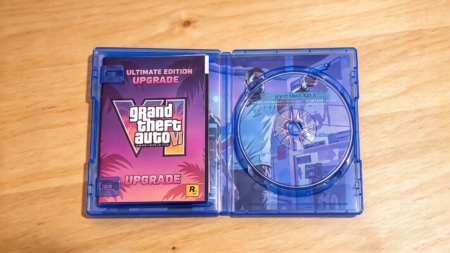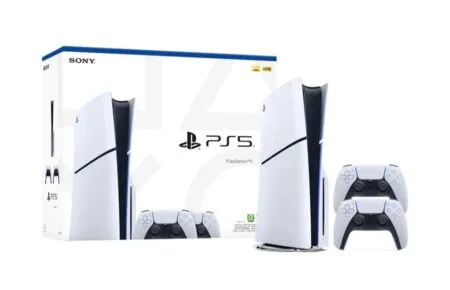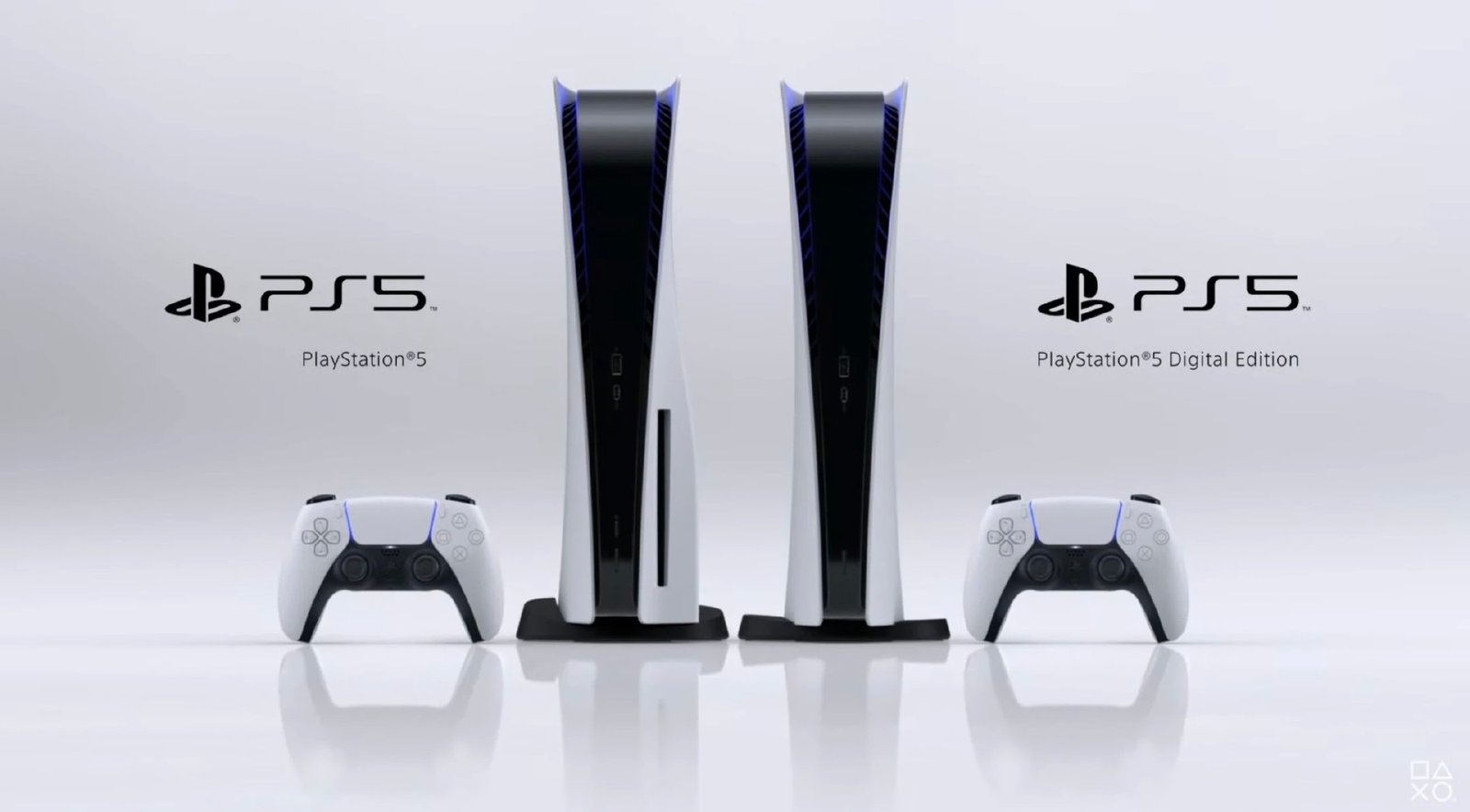
Grand Theft Auto VI requires up to 212 GB of storage space on PS5, so players with nearly full consoles may need to delete or move some games before installing it. If you don’t have enough free space, there are several ways to make room without permanently losing your games.
This guide explains how to check your PS5 storage, delete games you no longer play, move games to an external drive, install an additional SSD, and clear old screenshots and video clips.
How Much Space You Actually Need
GTA 6 reportedly requires up to 212 GB of storage on PS5. However, updates and additional installation requirements may increase the amount of space you need.
To avoid running out of space during installation, it’s a good idea to have around 250 GB free before installing the game. This is a recommended buffer, not an officially confirmed GTA 6 installation requirement.
The standard PS5 comes with an 825 GB SSD, but only around 667 GB is available for games and other content. If you already have several large games installed, you may need to free up space before playing GTA 6.
Step 1: Check Your Current Free Space
Before deleting anything, check how much storage is available on your PS5.
- Go to Settings > Storage.
- Select Console Storage to view how much space is being used.
- Check your available storage. If you have less than around 250 GB free, consider following the steps below.
This helps you determine how much space you need to clear before installing GTA 6.
Step 2: Delete Games You No Longer Play
Deleting games you have finished or rarely play is the quickest way to free up a large amount of storage.
- Go to Settings > Storage > Console Storage > Games and Apps.
- Select the games you want to remove.
- Choose Delete to uninstall them from your PS5.
Deleting a game does not normally delete its saved game progress. You can reinstall the game later from your Game Library without buying it again, provided you still own it.
Some games also let you remove specific content, such as multiplayer components or optional language packs, instead of deleting the entire game. If available, use the Customize option to remove content you no longer need.
Step 3: Move Games to USB Extended Storage
If you don’t want to delete games permanently, you can move them to an external USB HDD or SSD to free up space on your PS5.
Your external drive must support SuperSpeed USB 5 Gbps or faster and have a capacity between 250 GB and 8 TB. Not every USB drive is guaranteed to work with the console.
- Connect a compatible USB drive to your PS5.
- Go to Settings > Storage > USB Extended Storage.
- Select Format as USB Extended Storage if you are using the drive for the first time. Formatting erases the existing contents of the drive, so back up any important files first.
- Open your Game Library, highlight a game, press the Options button, and select Move Games and Apps.
- Select the games you want to transfer and move them to your USB drive.
PS5 games can be stored on USB extended storage, but you cannot play them directly from the drive. You must move them back to your PS5 console storage or M.2 SSD before playing.
PS4 games, however, can be played directly from USB extended storage. This makes an external drive a useful option for keeping older games installed without taking up your main SSD space.
Step 4: Install an M.2 NVMe SSD for Permanent Extra Space
If you regularly install large games, adding an internal M.2 SSD is one of the best long-term ways to expand your PS5 storage.
Unlike a USB extended storage drive, a compatible M.2 SSD allows you to install and play PS5 games directly without moving them back to the console’s built-in storage.
Before buying one, make sure the SSD meets these requirements:
- PCIe Gen4 x4 NVMe SSD
- 250 GB to 8 TB capacity
- Recommended sequential read speed of at least 5,500 MB/s
- Compatible heatsink or other heat-dissipation solution
- Compatible physical dimensions for the PS5 expansion slot
How to Install an M.2 SSD
- Turn off your PS5 completely and disconnect the power cable.
- Remove the appropriate console cover and the M.2 expansion slot cover.
- Adjust the spacer to match the length of your SSD.
- Insert the SSD into the expansion slot and secure it.
- Reinstall the slot cover and console panel.
- Turn on your PS5 and follow the on-screen instructions to format the new SSD.
Once installed and formatted, you can download, move, and play compatible PS5 games directly from the added SSD.
Make sure you follow the installation instructions for your specific PS5 model. You will also need a compatible screwdriver, and the SSD must have proper heat dissipation.
Step 5: Delete Old Screenshots and Video Clips
Screenshots and gameplay recordings can also take up valuable storage space, especially if you regularly capture long videos.
- Open the Media Gallery on your PS5.
- Review your old screenshots and video clips.
- Delete the recordings and images you no longer need.
- Copy important clips to a USB drive before deleting them if you want to keep them.
Removing old captures is a good way to recover additional space without uninstalling another game.
Important Reminders Before Freeing Up Storage
- Back up important saved data whenever possible, especially before making major storage changes.
- Deleting a game is different from deleting its saved data. Avoid deleting saved data if you want to keep your progress.
- Don’t expect to use the entire advertised storage capacity of your PS5 or SSD. Some space is reserved for the system and other data.
- If deleting games and captures isn’t enough, moving games to USB extended storage or installing an M.2 SSD can help.
By following these steps, you can free up enough space for GTA 6 without having to permanently give up your entire game collection. If you frequently run out of storage, installing a compatible M.2 SSD is the most convenient long-term solution because you can keep more PS5 games installed and ready to play.