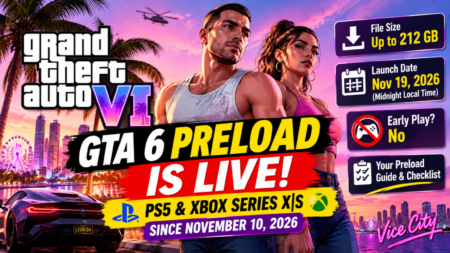
GTA 6 downloads can fail, get stuck, or become extremely slow if your console does not have enough storage space. Check the [GTA 6 download size and required storage] to make sure you have enough room before installing the game. Other problems may include an unstable internet connection or issues with your console.
This guide explains the most common download problems and walks you through the solutions for both consoles.
Why Your GTA 6 Download Might Be Failing
Your download may be stuck or failing for several reasons:
- Not enough free storage space to download and install the game.
- Problems with your PlayStation or Xbox account.
- An outdated console system update.
- PlayStation Network or Xbox service interruptions.
- A slow or unstable internet connection.
- Other games or apps using your network bandwidth.
- The GTA 6 preload not being available in your region yet.
Before trying the fixes below, make sure your console is connected to the internet and you are signed in to the account that owns the game.
Before You Start: Check These Things
Try these quick checks before troubleshooting further:
- Check your storage space. Make sure your console has enough free space for GTA 6 and its installation files.
- Check your game ownership. Confirm that you are using the account that purchased the digital game or redeemed the game code.
- Check server status. Visit the official PlayStation or Xbox status page to see if there are service interruptions.
- Update your console. Install any pending system software updates before trying again.
If your storage is almost full, free up space first. Having around 250 GB available is a recommended buffer based on the reported 212 GB requirement, not an official additional requirement.
How to Fix GTA 6 Download Problems on PS5
1. Check Your Available Storage
Your PS5 may fail to download or install GTA 6 if there is not enough free storage.
To check your storage:
- Go to Settings.
- Select Storage.
- Open Console Storage.
- Check how much free space is available.
If you do not have enough space, delete unused games or apps before trying to download GTA 6 again. If you need more space, follow our guide on [how to free up PS5 storage before GTA 6] for more ways to clear your console storage.
2. Free Up PS5 Storage
If your PS5 is running out of space, remove games you no longer play.
- Go to Settings > Storage > Console Storage > Games and Apps.
- Select the games or apps you want to remove.
- Choose Delete and confirm.
Deleting a game does not remove your digital purchase. You can download it again later from your Game Library.
If you frequently run out of space, you can install a compatible M.2 SSD to expand your PS5 storage.
3. Update Your PS5 System Software
An outdated system software version may cause problems with downloads or installations.
- Go to Settings > System > System Software > System Software Update and Settings.
- Select Update System Software.
- Install any available update.
- Restart your PS5 and try downloading GTA 6 again.
4. Pause and Resume the Download
Sometimes a download gets stuck temporarily.
- Open the Downloads/Uploads section from the PS5 Control Center.
- Select the GTA 6 download.
- Pause it and wait a few seconds.
- Resume the download.
If it still does not move, restart your PS5 and check the download again.
5. Restart Your PS5 and Router
A simple restart can fix temporary system or network problems.
- Turn off your PS5 completely.
- Restart your internet router.
- Wait for your internet connection to return.
- Turn your PS5 back on.
- Resume the GTA 6 download.
If the download continues to fail, cancel it and start a fresh download from your Game Library.
6. Rebuild the PS5 Database
If downloads repeatedly fail or your console behaves strangely, rebuilding the database may help resolve certain system or storage-related issues.
- Turn off your PS5 completely.
- Press and hold the power button until you hear a second beep.
- Connect your controller using a USB cable.
- Select Clear Cache and Rebuild Database from Safe Mode.
- Choose Rebuild Database and follow the instructions.
Rebuilding the database is not the same as factory resetting your PS5. Avoid selecting Reset PS5 unless you intend to erase your console data.
How to Fix GTA 6 Download Problems on Xbox Series X|S
1. Check Your Available Storage
Your Xbox needs enough free space to download and install GTA 6.
- Press the Xbox button on your controller.
- Go to Profile & system > Settings > System > Storage devices.
- Check the available space on your internal storage.
If you do not have enough room, uninstall games you no longer play or move older games to another storage device. You can also follow our guide on [how to clear Xbox storage before GTA 6] for step-by-step instructions on freeing up space.
2. Free Up Xbox Storage
To uninstall unused games:
- Press the Xbox button.
- Open My games & apps > See all.
- Highlight a game you no longer need.
- Press the Menu button.
- Select Uninstall and confirm.
You can also use an official Xbox Storage Expansion Card to add more space for games that need to run from supported storage.
3. Check Your Xbox Account and Updates
Make sure your Xbox account owns GTA 6 and your console is up to date.
- Go to Profile & system > Settings > System > Updates.
- Check for available console updates.
- Install any pending updates.
- Restart your Xbox.
If the game is not appearing in your library, check your purchase or redeemed code before trying to download it again.
4. Cancel and Restart the Download
If GTA 6 is stuck in the download queue, restart the installation.
- Press the Xbox button.
- Open My games & apps > See all > Manage > Queue.
- Highlight GTA 6.
- Press the Menu button and select Cancel.
- Restart your Xbox.
- Open the Microsoft Store or your game library and start the download again.
5. Close Running Games
Running games can affect download speeds on Xbox.
- Press the Xbox button.
- Highlight the game currently running.
- Press the Menu button.
- Select Quit.
Close other games and apps before resuming the GTA 6 download. This may help your console dedicate more resources to the installation.
How to Fix Slow GTA 6 Downloads
If GTA 6 is downloading but taking too long, try these steps to improve your connection.
1. Use a Wired Internet Connection
Connect your console directly to your router using an Ethernet cable. Wired connections are usually more stable than Wi-Fi and can reduce interruptions.
2. Switch to 5 GHz Wi-Fi
If you cannot use Ethernet, connect to your router’s 5 GHz Wi-Fi network if available. Move your console closer to the router to improve signal strength.
3. Pause Other Downloads
Other devices and apps may be using your internet bandwidth.
Pause downloads of other games, updates, and large files. If possible, temporarily reduce streaming and other internet activity on your network.
4. Close Games and Apps
Close games running in the background, especially online games and streaming apps, before downloading GTA 6.
5. Restart Your Router
Unplug your router for around 30 seconds, plug it back in, and wait until your internet connection is stable. Then resume the download.
6. Disable Your VPN
If your internet connection uses a VPN, temporarily turn it off. A VPN may route your traffic through a slower server and affect download speeds.
7. Download During Less Busy Hours
Your internet connection may become slower when many people are using it. Try downloading GTA 6 during quieter hours, such as late at night or early in the morning.
Common Xbox Download Error Codes
If your Xbox shows an installation error, try the following general fixes before downloading the game again.
- 0x8007000E: Restart your console, check available storage, and try the download again.
- 87E0000F: Check the Xbox service status, verify your game ownership, and restart the download if the error continues.
If the error appears repeatedly, record the exact code and check Microsoft’s Xbox support page for the specific troubleshooting instructions.
What Not to Do When GTA 6 Won’t Download
Avoid these common mistakes when troubleshooting your download:
- Do not buy the game again. Check your purchase history or redeemed code first.
- Do not ignore storage space. Your console may need additional room during installation.
- Do not repeatedly cancel the download. Try pausing, resuming, and restarting your console first.
- Do not install GTA 6 on a regular USB external drive. The game must run from supported high-speed storage on your console.
- Do not factory reset your console immediately. Try the simpler fixes before erasing your console.
Final Checklist
Before trying to download GTA 6 again, make sure:
- You have enough free storage space.
- You are signed in to the correct PlayStation or Xbox account.
- Your console system software is up to date.
- PlayStation Network or Xbox services are working.
- Your internet connection is stable.
- Other downloads and running games are paused or closed.
- You have restarted your console and router.
If GTA 6 still will not download after trying these fixes, check the official PlayStation or Xbox support pages for additional troubleshooting or contact support with the exact error code displayed on your console.